MS WORD
Complete Guide for Beginners
Features • Tools • Shortcuts • Practical Tips
Agar aap computer chalana seekh rahe hain, to MS Word aapke liye sabse useful applications mein se ek hai. Iska use letters, applications, resumes, assignments, reports, notices aur professional documents banane ke liye kiya jata hai. Is blog mein hum MS Word ko simple Hindi language mein, lekin English letters mein samjhenge, taaki beginners ise aasani se padh aur practise kar saken.
MS Word Kya Hai?
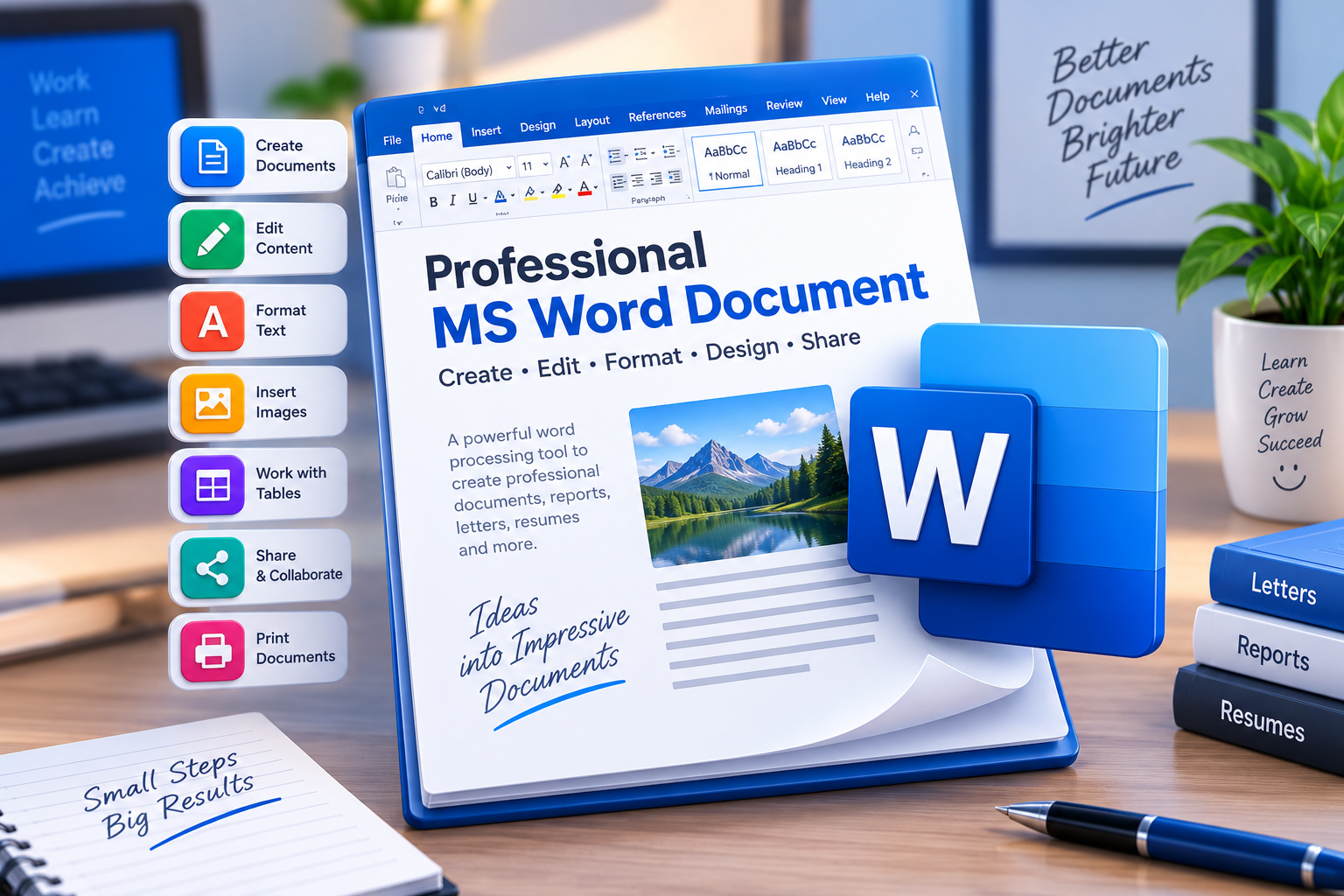
MS Word yani Microsoft Word ek word processing software hai. Iski madad se hum document type, edit, format, save, print aur share kar sakte hain. Sirf typing hi nahi, balki document ko professional look dene ke liye fonts, headings, tables, images, shapes, page numbers aur bahut saare formatting tools bhi milte hain.
Students ke liye assignments aur projects, office employees ke liye reports aur letters, teachers ke liye notes aur question papers, aur job seekers ke liye resume banane mein MS Word kaafi helpful hai.
MS Word Seekhna Kyon Zaroori Hai?
- Professional documents banana easy ho jata hai.
- Typing ke saath formatting aur page designing seekh sakte hain.
- Resume, application, report aur project khud prepare kar sakte hain.
- Tables, images aur charts ko document mein add kar sakte hain.
- Spelling aur grammar ko check karna easy hota hai.
- Document ko DOCX ya PDF format mein save karke share kar sakte hain.
MS Word Window ke Main Parts
MS Word open karne par screen par kai important sections dikhte hain. Sabse upar Title Bar hoti hai, jahan document ka naam dikh sakta hai. Uske neeche Ribbon hota hai, jisme Home, Insert, Design, Layout, References, Mailings aur Review jaise tabs hote hain. Beech ka white area document typing ke liye hota hai. Neeche Status Bar page number aur word count jaise details show karti hain.
- Ribbon – commands aur tools ka main area.
- Home Tab – typing aur formatting ke common tools.
- Insert Tab – pictures, tables, shapes aur page elements.
- Layout Tab – margins, orientation, size aur spacing.
- Review Tab – spelling, comments aur document checking.
- Status Bar – pages, word count aur view information.
MS Word ke Important Features
1. Text Formatting
Text formatting se aap apne document ko attractive aur readable bana sakte hain. Font style, font size, bold, italic, underline aur text alignment jaise options ka use karke important information ko highlight kiya ja sakta hai. Ek professional document mein formatting consistent rakhna bahut important hota hai.
2. Paragraph Formatting
Paragraph section se aap text ko Left, Center, Right ya Justify kar sakte hain. Bullets aur Numbering ka use points aur steps ko clearly present karne ke liye hota hai. Line spacing aur paragraph spacing change karke document ko clean aur comfortable-to-read banaya ja sakta hai.
3. Headings aur Styles
Agar document lamba hai, to Heading styles bahut useful hote hain. Heading 1, Heading 2 aur Heading 3 se content ko proper structure milta hai. Isi structure ki madad se baad mein automatic Table of Contents bhi create ki ja sakti hai.
4. Images, Shapes aur Screenshots
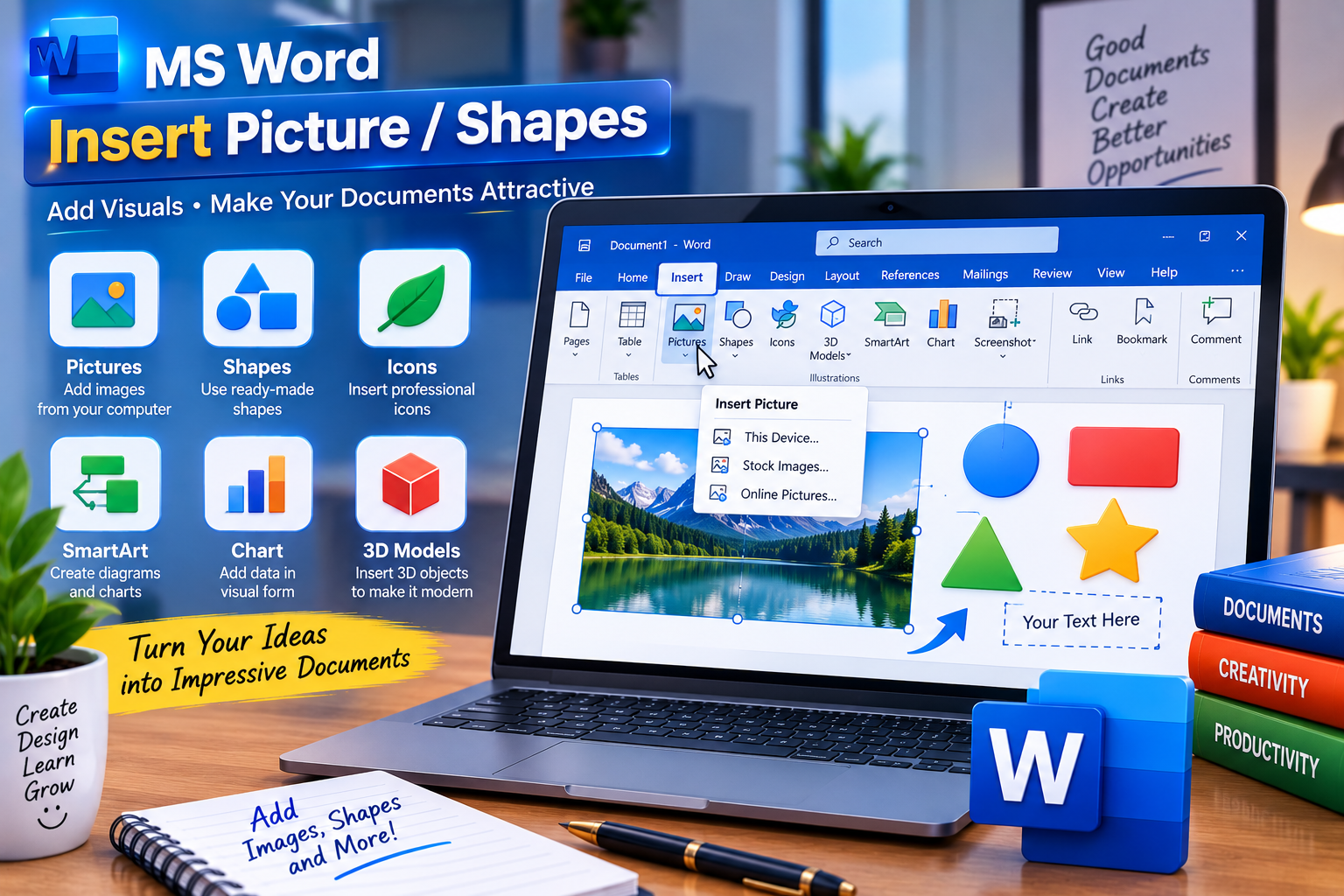
Insert tab ke through document mein pictures, shapes, icons aur screenshots add kiye ja sakte hain. Educational blogs aur tutorials mein images ka use readers ko steps samajhne mein kaafi help karta hai. Picture ko text ke saath properly arrange karne ke liye Wrap Text options use kiye ja sakte hain.
Click here to join
5. Tables
MS Word mein tables information ko rows aur columns ke form mein organize karne ka easy way hain. Attendance, timetable, marks, price list, comparison aur office records ke liye tables useful hote hain. Aap rows aur columns add kar sakte hain aur table ka style bhi change kar sakte hain.
6. Page Layout aur Design
Layout options se margins, paper size, page orientation aur columns manage kiye ja sakte hain. Portrait aur Landscape orientation ka use document ki requirement ke according hota hai. Proper margins aur spacing document ko professional appearance dete hain.
7. Header, Footer aur Page Numbers
Header aur Footer mein aisi information add ki ja sakti hai jo document ke multiple pages par repeat honi chahiye. Jaise organization ka naam, document title, date ya page number. Long reports aur assignments mein page numbering especially useful hoti hai.
8. Find aur Replace
Find option se document ke andar kisi word ya phrase ko quickly search kiya ja sakta hai. Replace option se repeated text ko ek saath change karna possible hota hai. Long documents edit karte waqt yeh feature bahut time save karta hai.
9. Spelling, Grammar aur Review
Word mein proofreading tools diye jaate hain jo spelling aur grammar issues identify karne mein help karte hain. Review tab mein Comments aur Track Changes jaise tools bhi milte hain. Teamwork ya teacher-student document checking mein yeh features kaafi useful hain.
10. Save, Print aur PDF
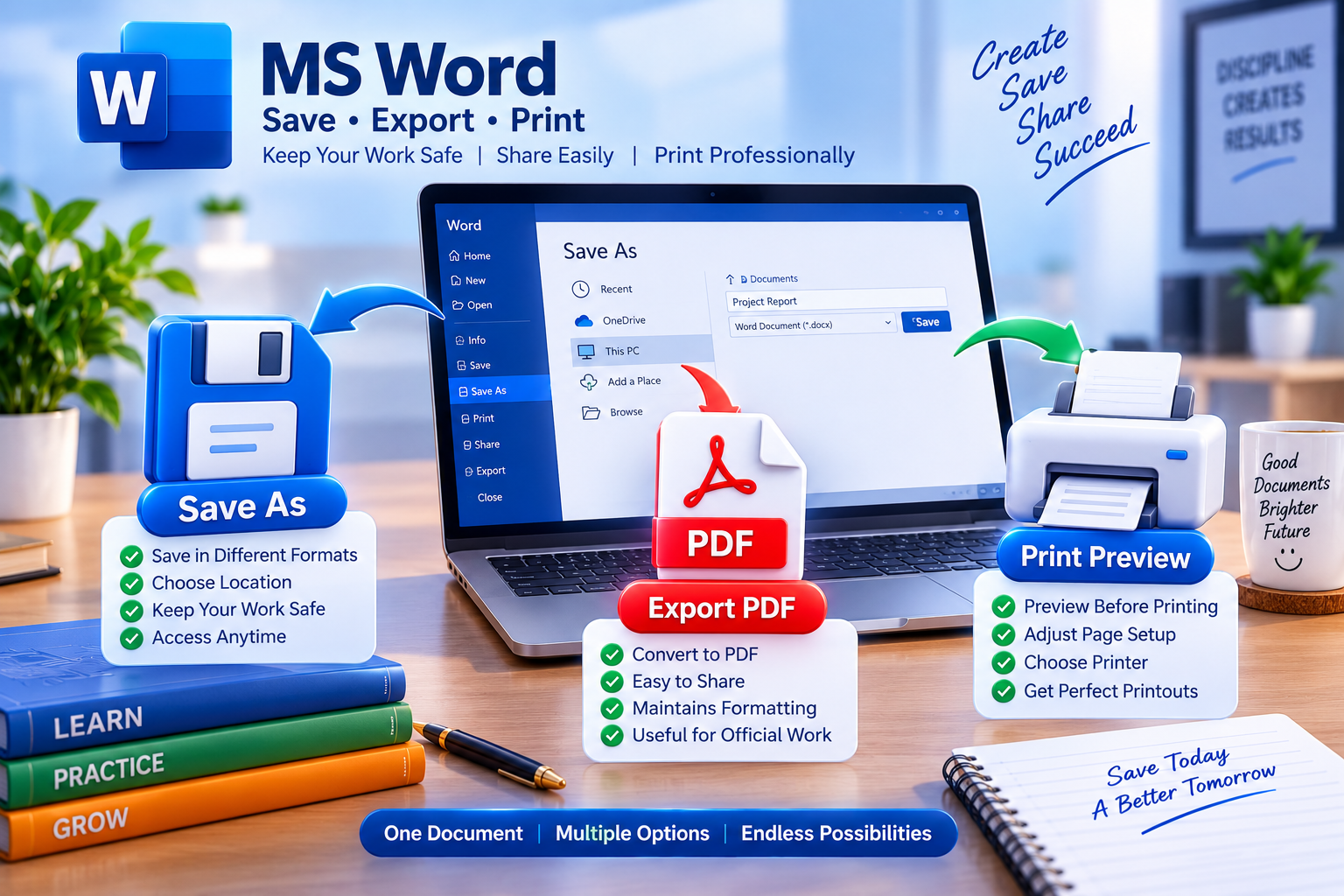
Document ko future editing ke liye DOCX format mein save karna best option hota hai. Share karne ke liye PDF format useful hai kyunki uska layout generally fixed rehta hai. Print karne se pehle Print Preview zaroor check karein, taaki page breaks aur margins sahi dikh rahe hon.
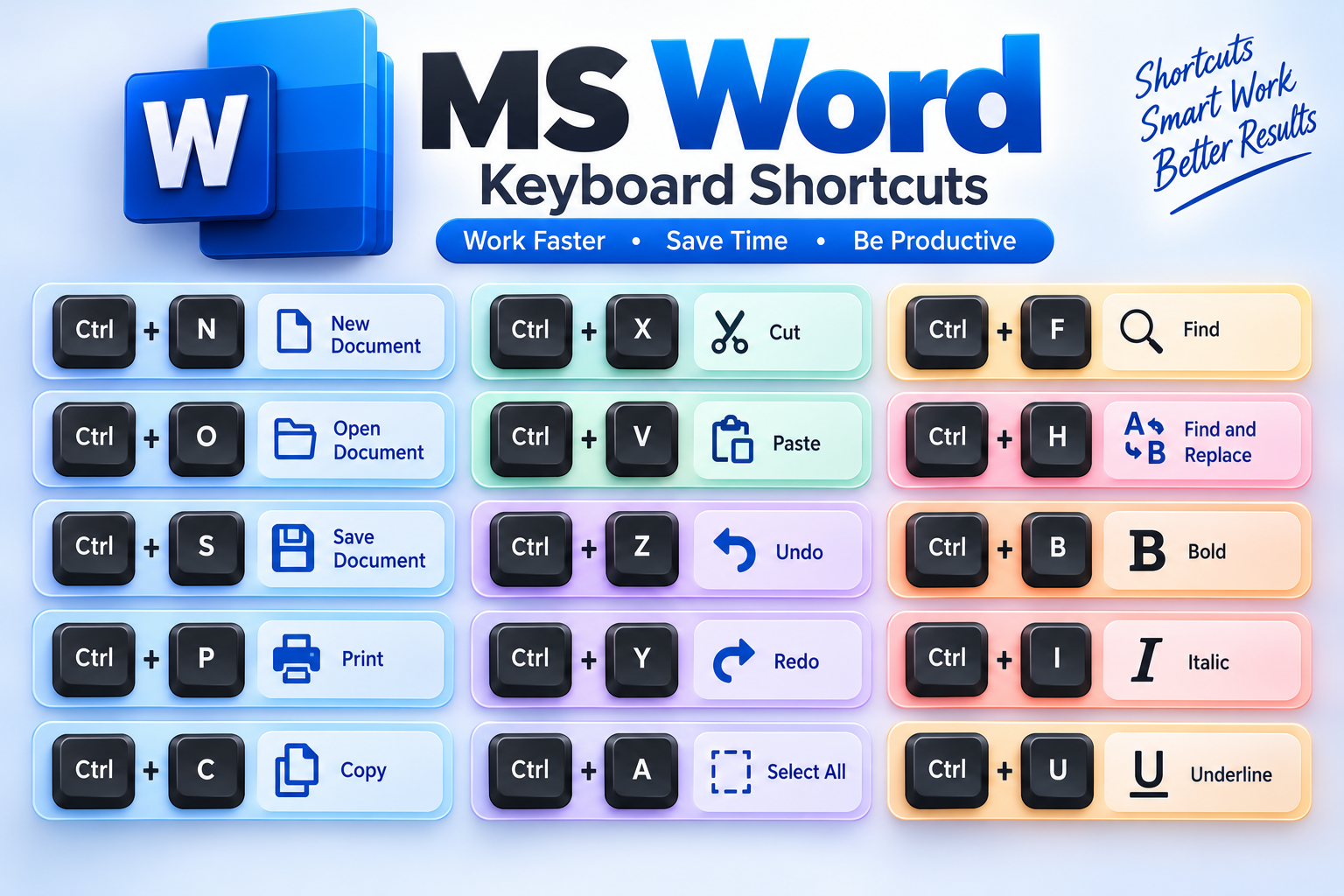
MS Word ke Most Useful Keyboard Shortcuts
- Ctrl + N – New Document
- Ctrl + O – Open Document
- Ctrl + S – Save Document
- Ctrl + P – Print
- Ctrl + C – Copy
- Ctrl + X – Cut
- Ctrl + V – Paste
- Ctrl + Z – Undo
- Ctrl + Y – Redo
- Ctrl + A – Select All
- Ctrl + F – Find
- Ctrl + H – Find and Replace
- Ctrl + B – Bold
- Ctrl + I – Italic
- Ctrl + U – Underline
Professional MS Word Document Banane ke Tips
- Heading aur body text ke liye consistent formatting rakhein.
- Bahut zyada fonts aur colours ka use na karein.
- Important points ko bullets ya tables mein present karein.
- Images ko relevant jagah par hi add karein.
- Long document mein page numbers aur headings use karein.
- Final document share karne se pehle spelling aur alignment check karein.
Editable copy ke liye DOCX aur final sharing ke liye PDF save karein.
Click here to join
- MS Word Kaun-Kaun Seekh Sakta Hai?
MS Word kisi ek profession tak limited nahi hai. Students assignments aur projects bana sakte hain. Teachers notes aur question papers prepare kar sakte hain. Office staff letters, reports aur records bana sakta hai. Job seekers resume aur applications prepare kar sakte hain. Small businesses bhi notices, quotations, forms aur basic documents ke liye MS Word ka use kar sakte hain.
Conclusion
MS Word ek simple typing software se kahin zyada powerful tool hai. Agar aap text formatting, paragraphs, headings, tables, images, page layout, shortcuts aur document management ko achhi tarah samajh lete hain, to aap daily computer work ka ek bada hissa confidently handle kar sakte hain. MS Word seekhne ka best tareeka hai real documents banana aur har feature ko practically use karna.
Computer Course Seekhna Hai?
Free demo class layi abhi contact karo — Rahon Road, Ludhiana.
📞 Call Now